
Let me ask you something: when was the last time you actually looked at your phone’s privacy settings? Not the wallpaper. Not the ringtone. The settings that decide what your phone tells strangers about you.
If you’re like most people, the answer is “never” — and that’s exactly what the defaults are counting on. Out of the box, your phone is chatty. It shares your location, builds an ad profile about you, and hands generous permissions to apps that never needed them. None of this requires you to be a tech person to fix. About fifteen minutes, and I’ll walk you through it.
1. Turn off ad personalization
Your phone quietly builds an advertising profile from what you do — and both Apple and Google let you opt out, if you know where to look.
On iPhone: Settings → Privacy & Security → Apple Advertising → turn off Personalized Ads. On Android: Settings → Privacy → Ads → delete your advertising ID.
Quick reality check: you’ll still see ads. They just won’t be stitched together from your personal behavior anymore. That’s a trade worth making.
2. Stop giving apps your location 24/7
Here’s a question worth asking about every app: does this thing need to know where I am right now? Your maps app, yes. That flashlight app from 2019? Absolutely not.
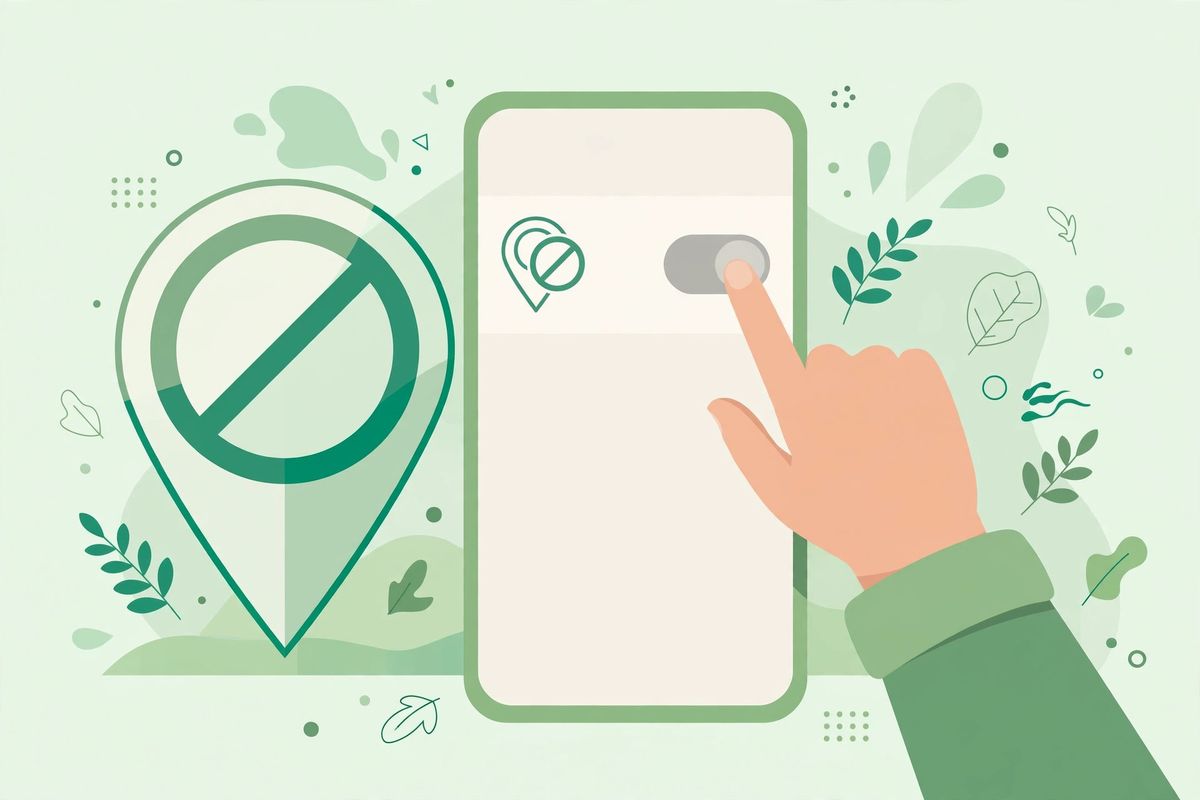
On iPhone, go to Settings → Privacy & Security → Location Services and flip apps to “While Using” or “Never.” On Android: Settings → Location → App location permissions — same idea. And while you’re there, turn off “Precise Location” for apps that only need a rough area. Your weather app doesn’t need your exact coordinates.
3. Audit your app permissions (the big one)
This is the single highest-value item on the list, so don’t skip it. Every few months, look at which apps can access your microphone, camera, contacts, and photos. You’ll be surprised — I once found a calculator app with microphone access. A calculator.
iPhone: Settings → Privacy & Security, then tap through each category. Android: Settings → Privacy → Permission manager. Be ruthless. A photo editor doesn’t need your contacts. A game doesn’t need your microphone. If an app complains, it can ask again when it genuinely needs it.
4. Turn off Wi-Fi and Bluetooth when you’re not using them
Your phone is constantly shouting “is anyone there?” looking for networks and devices — and stores, malls, and trackers can listen to those shouts to follow your movements. It’s called passive tracking, and it’s creepy precisely because you never notice it.
Just toggle Wi-Fi and Bluetooth off when you’re out and not using them. On Android, also kill “Wi-Fi scanning” and “Bluetooth scanning” under Location settings. Bonus: your battery will thank you.
5. Turn on automatic updates already
I know, updates are annoying. They arrive at the worst time and take forever. But most updates are patching security holes that attackers already know about and are actively using. Running old software is like leaving your front door open because you didn’t feel like turning the key.
iPhone: Settings → General → Software Update → Automatic Updates on. Android: Settings → System → Software update, plus auto-update apps in the Play Store. Then forget about it — that’s the whole point.
6. Get a VPN for public Wi-Fi
Coffee shop Wi-Fi. Airport Wi-Fi. Hotel Wi-Fi. These are hunting grounds — anyone on the same network with basic tools can snoop on unencrypted traffic. A decent VPN encrypts everything between your phone and the internet, which removes the whole category of risk.
One warning: skip the free VPNs. If you’re not paying, you’re the product — many free VPNs fund themselves by selling the exact data you’re trying to protect. The irony writes itself.
7. Hide message previews on your lock screen
Picture this: your phone’s on the table, a two-factor code or a private message arrives, and everyone at the table reads it. Lock-screen previews are convenient right up until they’re not.
iPhone: Settings → Notifications → Show Previews → “When Unlocked.” Android: set lock-screen notifications to hide sensitive content. Ten seconds, done.
8. Make sure Find My Device is actually on
If your phone is lost or stolen, being able to locate it, lock it, or wipe it remotely is the difference between a bad day and a catastrophe. Check now — don’t discover it’s off when you need it.
iPhone: it’s under your iCloud settings (Find My iPhone). Android: Settings → Security → Find My Device. Test it once from a computer so you know it works. And set a proper PIN while you’re at it — six digits minimum, and not your birth year.
9. Stop handing out your whole photo library
This one’s newer and most people miss it: you no longer have to give apps your entire camera roll. Both iPhone and Android now let you share only selected photos.
Next time an app asks for photo access, choose “Selected Photos” / “Allow limited access.” Same logic for microphone and camera — set them to “Ask every time” for apps you don’t fully trust. These three permissions are the most abused on the phone, so they deserve the strictest treatment.
10. Turn off the quiet data collection
Both Apple and Google collect diagnostics and usage analytics in the background — crash reports, usage stats, the works. Your phone works exactly the same without sending it.
iPhone: Settings → Privacy & Security → Analytics & Improvements → turn it all off. Android: Settings → Privacy → Usage & diagnostics → off. Five minutes, and one less stream of your data flowing out.
Conclusion
None of this required technical skill — just the willingness to open menus you usually ignore. Do the list once, then put a reminder in your calendar to repeat the permission audit every few months. Privacy isn’t about having something to hide. It’s about deciding for yourself what you share, with whom, and when.
Frequently Asked Questions
What’s the single most important privacy setting on my phone?
Reviewing app permissions. Go through which apps can access your location, microphone, camera, and photos, and revoke anything excessive. No other setting removes as much silent data collection in as little time.
If I turn off ad personalization, will I stop seeing ads?
No — you’ll still see ads, they just won’t be built from your personal behavior profile. It’s still worth doing: it breaks the link between your activity across apps and the advertisers profiling you.
Should apps get my precise location?
Rarely. Most apps work fine with approximate location — weather, news, shopping. Reserve precise location for maps and ride-sharing, and set everything else to “While Using” or approximate. Your movements are sensitive data; treat them that way.
Are free VPNs safe?
Usually not. Running VPN servers costs money, so free VPNs often pay for it by logging and selling your data — the exact thing you’re trying to prevent. If privacy is the goal, use a reputable paid VPN with a no-logs policy.
How often should I check my app permissions?
Every few months, plus every time you install something new. Apps update, permissions creep, and that flashlight app doesn’t need your location. Put a recurring reminder in your calendar — it takes five minutes.

